What Is The Best Memory Card for Gaming PC? A Complete Guide
A desktop gaming PC should store installed games on an SSD, not an SD or microSD card. That distinction matters when you are comparing storage for a computer, a handheld, or other devices. RAM is a separate component that helps games run; it does not store your game installs. This guide helps you match removable storage to a compatible handheld or file-transfer task, while keeping your desktop game drive choice clear.
Random IOPS measure how many small, scattered read or write operations a card can handle each second. Those numbers describe a different kind of performance from large-file transfer speed, so the label alone may not tell the whole story.
Key Takeaways
- Use an internal SSD for installed desktop games.
- Use RAM for active games and applications, not permanent storage.
- Buy a memory card for a device that supports its format.
- Match the card interface to the handheld or reader.
- Match the storage purchase to the device that will actually use it.
Can a Gaming PC Run Games From a Memory Card?
A gaming PC can read files from a card, but an SSD is the right place for installed desktop games. Read access through a compatible card reader does not make removable storage a recommended game drive.
Desktop games are normally installed on an internal SATA or NVMe SSD. A reader gives the computer access to files on a compatible SD or microSD card, much like connecting another removable storage device. The computer can open, copy, and save files that the card supports.
Keep screenshots, recordings, and other portable files on a card; do not treat it as the desktop game library.

That distinction is useful when you capture gameplay or carry files between devices. A card can hold video, screenshots, and documents for transfer, while the PC’s internal drive handles installed games. The reader makes the files available, but it does not change the card into an internal drive.
Use a removable card for portable files, not as a substitute for the PC’s game drive. That keeps the computer’s game storage separate from files you move between devices.
What Should a Gaming PC Use for Game Storage?
For desktop game storage, choose an SSD that fits the motherboard and the space you want for your library. An internal SSD is the straightforward option for a modern gaming computer, with NVMe and SATA as common interfaces.
Storage and memory have different jobs. The drive keeps installed games when the PC is powered off, while working memory supports what the computer is running right now.
An SSD holds installed games
An NVMe SSD is a direct choice for a modern gaming PC when the motherboard has a compatible M.2 connection. It stores the game files and lets the computer retrieve them when a game launches or loads a level.
A SATA SSD is another desktop storage option. It uses a different connection from an M.2 NVMe drive, so check the drive type and the space inside your computer before choosing. Both options provide permanent storage for your game library.
Expandable memory in a handheld and upgradeable desktop storage are separate needs. A handheld may accept a removable card, while a desktop game library belongs on an internal drive connected to the PC.
RAM helps games run
RAM holds the information a game and other active applications need while the computer is on. It is temporary working memory, not permanent game storage, and installed games do not remain in RAM after shutdown.
Check the motherboard’s available M.2 or SATA connections before buying a PC drive. That tells you which SSD formats can fit the computer without confusing RAM capacity with game-storage space.
Which Card Format Does Each Gaming Device Need?
The device’s card slot, not the card’s highest advertised rating, determines which format will work. Match the format first, then compare capacity and speed ratings that the device can use.
A host can use a card with the same or a higher speed-class rating than it requires. A faster interface still needs matching hardware to reach its potential; a higher-rated card cannot remove the host’s interface limit.
| Device | Card format | What it means for game storage |
|---|---|---|
| Desktop gaming PC | SSD for installed games, card reader for card files | A memory card is not the recommended game drive |
| Handheld with microSD expansion | Device-compatible microSD card | Confirm the device’s supported format and rating |
| Nintendo Switch 2 | microSD Express | Standard UHS-I cards do not work for game storage |
UHS-I cards for compatible handhelds
A handheld with a microSD slot needs a card format the device supports. UHS-II or UHS-III cards in a device limited to UHS-I or UHS-II will not reach their full potential speed. The card may work, but the host sets the practical ceiling.
That is why the device’s own instructions matter more than a card’s most impressive label. A card with a higher rating does not upgrade the slot or change its interface.
Switch 2 requires microSD Express
Nintendo Switch 2 requires microSD Express for game storage. Standard UHS-I cards will not work for that purpose. microSD Express uses PCIe/NVMe, and its speed advantage activates only on compatible hardware.
For Switch 2 game storage, rule out standard UHS-I cards before comparing other specifications. A higher speed-class rating cannot make an unsupported card format compatible.
What Is the Best Memory Card for Gaming PC?
The best card for a desktop gaming PC is no card at all for installed games; choose an SSD instead. Cards have a different job: they suit supported handheld expansion and portable file transfers.
The card picks below serve those uses, not desktop game installs. A listed speed figure describes a particular card result or rating, and the host device still needs to support its interface.
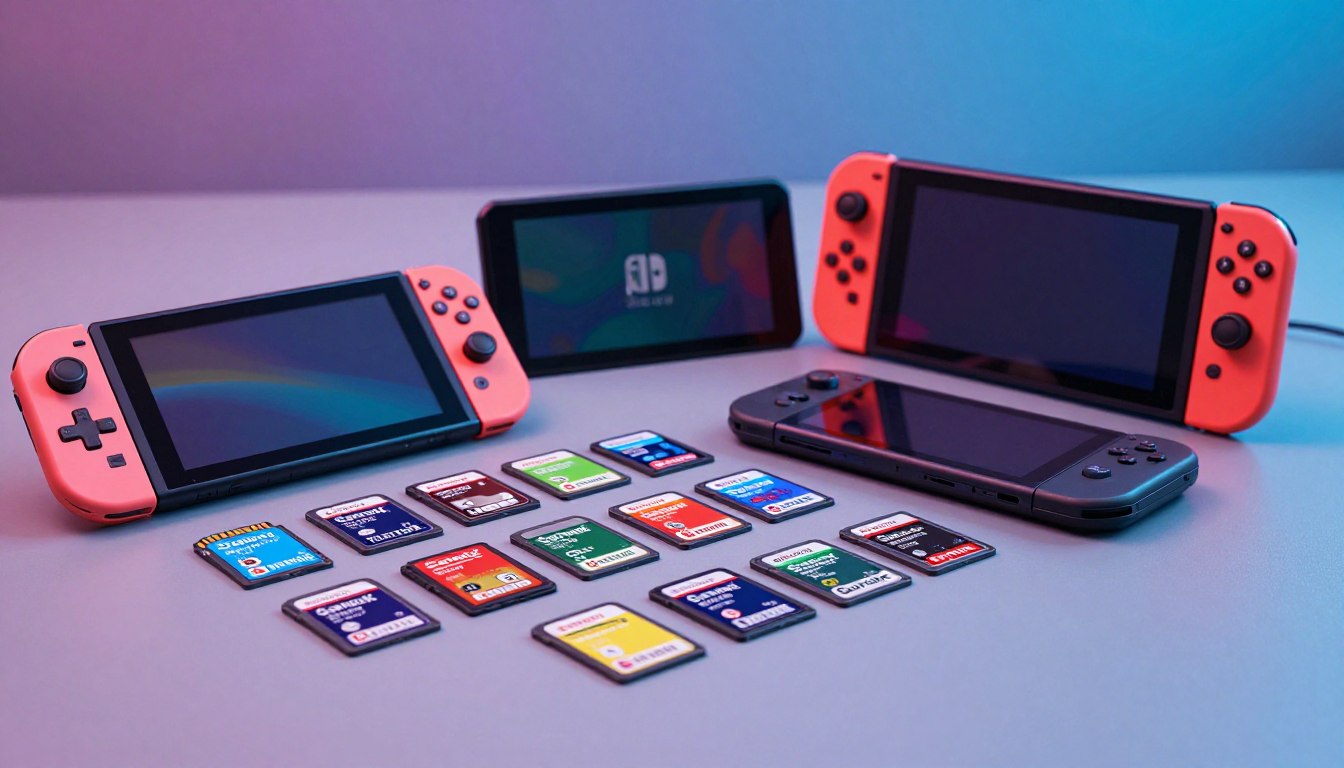
Desktop PCs need an SSD, not a card pick
For a desktop computer, an internal SSD is the right storage choice for installing games. Choose an NVMe or SATA drive that fits the motherboard and the amount of space you need. Buying a card for this job adds removable storage without making it the recommended game drive.
Card picks for handhelds and file transfers
For a compatible handheld, begin with its accepted card format. Samsung P9 Express is a 512GB microSDXC card rated for up to 800 MB/s read, aimed at Switch 2 game storage.
| Use | Card | Format | Speed figure |
|---|---|---|---|
| Switch 2 game storage | Samsung P9 Express 512GB | microSD Express | Up to 800 MB/s read |
| General use on a compatible handheld | Kingston 128GB Canvas Go Plus | microSDXC UHS-I | 101 MB/s tested large-file write |
| Lower-capacity UHS-I option | SanDisk 64GB Extreme | microSDXC UHS-I | 83 MB/s tested large-file write |
| Fast microSD where supported | Lexar Professional SILVER PLUS | microSDXC | Up to 205 MB/s read and 150 MB/s write |
| Full-size SD file transfers | SanDisk Extreme Pro UHS-I | SD UHS-I | 106 MB/s maximum measured write |
Kingston Canvas Go Plus is available from 32GB to 512GB. SanDisk Extreme Pro UHS-I is a full-size SD card, while the Lexar Professional SILVER PLUS is a microSD option.
Advertised maximums and measured results are not directly comparable. A peak rating is not the same as a test result, and the host device must support the card’s interface to benefit from it.
Price depends on capacity, interface, and intended use, so compare cards with the same job in mind rather than choosing by price alone. For a handheld purchase, start with the exact format that its game-storage slot accepts.
Do Card Speeds Affect Game Loading?
A card’s read speed is the figure most closely tied to retrieving game data from removable storage. Read speed describes pulling files from a card, while write speed describes saving files to it.
A gaming device reads data from storage when it loads content. That makes read speed more relevant to loading than write speed, which matters more when you save or copy files onto the card.
A high-speed label does not promise the same result in every setup. The card, reader, computer, and connection all affect file transfers, so a reader or cable can hold back a fast card.
- The card’s interface and condition.
- The card reader and computer connection.
- The USB cable used with an external reader.
Those factors matter when you copy a large recording or game file between devices. A transfer result from one reader may differ from another, even when both use the same card.
Compare like-for-like speed measurements rather than treating every headline number as the same kind of result. A read rating and a measured write result describe different tasks.
What Do microSD Speed Ratings Mean?
A rating tells you what kind of speed is being described, not whether every device can use it. The host device sets the usable interface ceiling, while other symbols describe minimum write performance or app access.
“Fastest” depends on whether you mean an interface limit, a sustained-write rating, or a card’s real result in a particular device. Those labels are not interchangeable.
UHS interfaces set a transfer ceiling
UHS-I has a maximum transfer speed of 104 MB/s. UHS-II reaches 312 MB/s, and UHS-III reaches 624 MB/s. These are interface maximums, not guarantees of a card’s everyday performance.
UHS-II cards have a second row of pins, while UHS-I cards have one row. A compatible host is needed to use the higher interface’s potential; a device with a lower interface limit will hold the card back.
The microSD Express interface has a maximum transfer speed of 985 MB/s, the highest maximum listed here. That ceiling requires compatible hardware, and it does not promise a card will deliver that speed in real use.
Speed classes and app ratings describe different jobs
U1 and V10 mean a minimum sequential write speed of 10 MB/s. U3 and V30 mean 30 MB/s, while V60 and V90 mean 60 MB/s and 90 MB/s.
A1 guarantees 1,500 random-read IOPS and 500 random-write IOPS. A2 guarantees 4,000 random-read IOPS and 2,000 random-write IOPS. Random IOPS count small, scattered read or write operations each second.
| SD Express class | Minimum write speed | Unit |
|---|---|---|
| E150 | 150 | MB/s |
| E300 | 300 | MB/s |
| E450 | 450 | MB/s |
| E600 | 600 | MB/s |
SD Express classes E150, E300, E450, and E600 indicate minimum write speeds of 150, 300, 450, and 600 MB/s. UHS interface maximums describe another measure, so compare the symbol that matches your task.
Match the rating to the host device’s required class before paying for a higher one. A faster-looking mark does not help when the device cannot use it.
How Much Game Storage Fits on a Card?
A 128GB card may fit a few large games or many smaller ones, depending on their installed sizes. About 1-3 large games is a useful planning estimate when each takes roughly 40-100GB.
Game count is not fixed by the card’s printed capacity. Installed file sizes and downloadable content determine how much space each title uses, and smaller games can fit in much greater numbers.
Estimate capacity from game sizes
A nominal 128GB card does not promise a set number of game installs. One large title can take a substantial share, while several smaller titles may use less space together. Add downloadable content to the amount you expect each game to occupy.
Before buying, consider these three parts of your library:
- The total size of the games you already own.
- Room for future downloads and game updates.
- The maximum card capacity your device supports.
Check the capacity standard and file system
SDXC cards range from 64GB to 2TB and use exFAT. That standard covers a wide range of capacities, but the handheld or other device may support only part of it.
Check the device’s maximum supported capacity before choosing a card. A card that exceeds that limit may not work as expected, even when its format appears suitable.
Leave spare space for updates and new installs rather than planning to fill every gigabyte. A little room keeps you from having to remove a game whenever you want to add another.
A 128GB card’s game count depends on the actual sizes of its titles, not just the number printed on its label. Treat the estimate as a starting point, then check the games you plan to install.
Can a microSD Card Expand Handheld Game Storage?
A microSD card can expand game storage on a handheld that supports it, including devices such as the Steam Deck. More room can let you keep additional games installed without relying only on built-in storage.
Games on removable storage may also load faster than they would from slower storage in some handheld setups. The result depends on the handheld’s supported card format and interface, so a faster card label alone cannot promise a particular loading time.
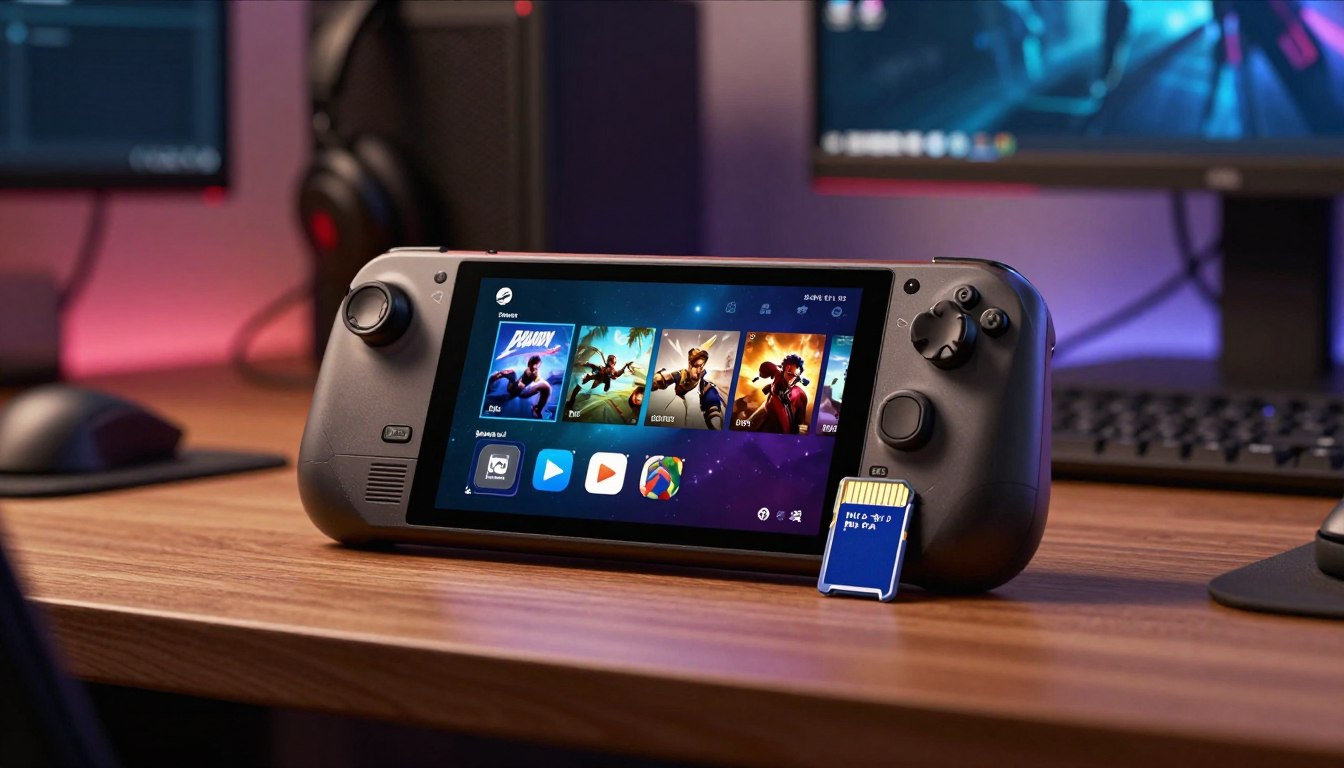
The Steam Deck is one example of a gaming handheld where microSD expansion can add room for games and may reduce load times. That makes a microSD card useful for a portable game library, not a universal replacement for every device’s built-in drive.
Nintendo Switch 2 is a separate compatibility case because its game storage uses microSD Express. Its speed advantage applies only when the hardware supports that interface. Other handhelds follow their own supported formats.
Check the handheld’s own storage instructions before moving a game library onto a card. That helps you avoid a card that fits physically but does not suit the device’s storage setup.
What Can a Card Reader Do for a Gaming PC?
A card reader is useful when you need to move files onto or off a gaming PC. It handles file access, such as importing gameplay recordings, video, or camera media from removable storage.
A reader can also move files between devices that use different storage slots. It does not change the card’s purpose, but it gives the computer a way to access files stored on that card.
Use this short transfer sequence when you bring a card to your computer:
- Identify the card type.
- Choose a reader with a matching slot.
- Connect the reader to the PC.
- Copy the files and safely eject the card.
The SanDisk Extreme Pro UHS-I is a full-size SD transfer option with a maximum measured write speed of 106 MB/s. That makes it useful for moving files when the reader supports its interface, not a recommended desktop game drive.
Use a reader and connection that support the card’s interface if transfer time matters. A fast card cannot reach its potential through a reader or cable that limits the connection.
Which Card-Buying Mistakes Cost You Performance?
A card that looks right on the label can still be defective, counterfeit, or mismatched to its slot. Check the card itself, because a false capacity claim or damaged storage can lead to failed transfers and lost files.
A mislabeled card may report more storage than it actually holds. Defective or counterfeit cards can perform poorly, corrupt files, or stop working before they meet your needs.
Capacity and authenticity checks
Use these checks when you buy a new memory card:
- Buy through a trusted retailer.
- Inspect the capacity and interface labels.
- Test reported capacity with a full-card write/read check.
- Stop using a card that corrupts files.
A low price alone does not prove that a card is genuine or that it holds the capacity printed on the package. A full-card check helps reveal storage that reports a false size or fails under use.
Reader and adapter trouble
An adapter changes physical fit, not the card’s interface. A microSD card can fit a standard SD slot with an adapter, but a full-size SD card cannot fit a microSD slot.
Loose contact can interrupt a transfer or disconnect a card during use. Camera compatibility problems can also occur when a microSD card sits in an SD adapter, especially if the fit is not secure.
Do not trust important files to a new card until a full write and read check has completed without errors.
Test a new card before trusting it with files you cannot replace. If it corrupts data during checking, stop using it for important storage.
How Should You Set Up a New Card?
Back up any files you want to keep before preparing a new card for a gaming device. Formatting erases the card’s existing contents, so copying those files elsewhere first prevents an avoidable loss.
A fresh card should not be assumed ready for every device. Formatting through the destination device’s own menu lets that device prepare the card for its expected use.
Use the device’s format option when it is available. A computer may be able to format a card, but the destination device’s own menu is the practical choice when the card will stay with that device.
After formatting, confirm that the device recognizes the card and displays it as available storage. Do this before downloading or copying games, so you know the card is ready for the intended task.
Keep a backup until you have confirmed that the card works as expected. If the card already contains files, formatting removes them; the format command is not a harmless setup check.
Confirm the device recognizes the prepared card before moving games or files onto it. That final check catches setup problems before your library depends on the new storage.
Conclusion
For desktop PC games, choose an SSD; choose a memory card only when a compatible device gives it a clear job. A card makes sense for supported handheld expansion or portable file transfers, not as the recommended drive for installed desktop games.
For a PC upgrade, check the motherboard’s available storage connections and choose a matching SSD. For removable storage, start with compatibility and then weigh capacity and speed against how you will use the card.
Check your device’s supported storage type before placing the order.
FAQ
How many games can a 128GB SD card hold?
A 128GB SD card can hold about 1-3 large games if each occupies roughly 40-100GB. Smaller games can fit in much greater numbers. The total also changes when a game has downloadable content or updates that take extra space. Check the installed size of the specific titles you want, then leave room for future downloads.
What are the different speeds of microSD cards?
microSD speeds include interface ceilings and minimum-write classes. UHS-I tops out at 104 MB/s, while UHS-II reaches 312 MB/s and UHS-III reaches 624 MB/s. U1 and V10 guarantee 10 MB/s minimum sequential writes; U3 and V30 guarantee 30 MB/s. The host device limits usable interface speed, so a high-rated card may run below its ceiling.
Are SD cards good for gaming?
SD and microSD cards can expand storage on compatible handhelds, but desktop PC games belong on an SSD. Handheld support varies by model, and the slot determines which card format can work. A card reader can make files available to a computer, but it does not make the card the recommended drive for installed desktop games.
What is the fastest memory card?
The microSD Express interface has a maximum transfer speed of 985 MB/s, the highest interface maximum described here. That figure is a ceiling, not a guaranteed real-world result. Compatible hardware is required to use the interface’s advantage. If the device does not support microSD Express, that headline maximum will not translate into faster performance on that device.
Which brand of SD card is the best?
SanDisk, Lexar, Kingston, Samsung, and Transcend all have card options worth comparing, but the best choice depends on the exact model and device. Check format, capacity, and interface support first. Then compare the speed figure that matches your job, such as reading game data or writing large video files. Brand alone does not establish compatibility.
What are the top 5 SD card brands?
Five brands represented by suitable card options are SanDisk, Lexar, Kingston, Samsung, and Transcend. Treat that as a useful shortlist, not a guarantee that every model will suit your device. Card formats and interface support vary by product. Check the exact model’s specifications and your device’s requirements before choosing.
Does it matter what brand of SD card you buy?
Brand matters less than buying authentic stock in the correct format with an interface your device supports. A reputable name cannot fix a card that does not match the slot or host. Check the exact capacity and speed markings, and test a new card before trusting it with files. A low price alone does not verify authenticity or capacity.
If you want to dig further into 4 basic functions of computer explained with, read our 4 Basic Functions of Computer Explained with guide.
If you want to dig further into 4 basic functions of computer explained with, read our 4 Basic Functions of Computer Explained with guide.
If you want to dig further into why does nostalgia cling to old ai? soul of d, read our Why Does Nostalgia Cling to Old AI? Soul of D guide.