The 4 Basic Functions of a Computer Explained with Real Examples

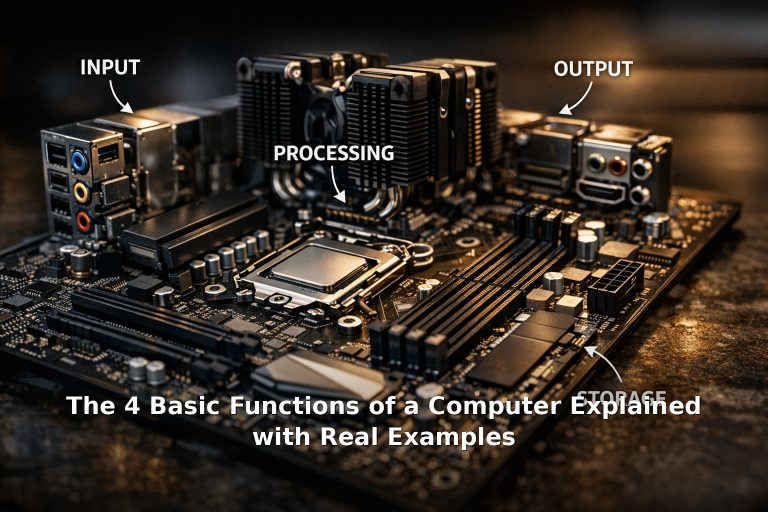
Quick answer: Every computer, from a smartphone to a supercomputer, performs four basic functions: input, processing, storage, and output. Input is how you give the computer data. Processing is how it makes sense of that data. Storage is how it keeps information short-term or long-term. Output is how it shows or delivers results. Understanding these four functions helps you make better decisions when buying, using, or troubleshooting any computer.

Why These Four Functions Matter

You do not need to be a tech expert to benefit from understanding the basic functions of a computer. Knowing what each part does helps you diagnose why a computer is slow (maybe storage is full, or the processor is overwhelmed), choose the right device for your needs (more processing power for gaming, more storage for media), and use your devices more confidently.

Think of these four functions like a kitchen. You bring ingredients in (input), you prepare and cook them (processing), you keep leftovers in the fridge (storage), and you serve the finished meal (output). Every step relies on the others. If one breaks down, the whole system suffers.

Input: Getting Data Into the Computer

Input is any data or command you send to the computer. Every time you type a key, click a mouse, tap a touchscreen, speak to a voice assistant, or scan a QR code, you are performing an input operation.

Common input devices you already use:

  • Keyboard — typing text, pressing shortcuts, entering passwords.
  • Mouse or trackpad — clicking, scrolling, dragging, selecting.
  • Touchscreen — tapping, swiping, pinching to zoom on phones and tablets.
  • Microphone — voice commands for Siri, Alexa, or Google Assistant.
  • Camera — taking photos, scanning barcodes, video calls.
  • Sensors — GPS for location, accelerometers for screen rotation, thermometers in smart devices.

Input devices convert physical actions into digital signals that the computer can understand. A keyboard, for example, sends a unique code for each key press. The computer receives these codes and decides what to do with them — that is where processing comes in.

Processing: What Actually Happens Inside

Processing is the function that makes a computer a computer. The processor — also called the CPU (central processing unit) — is the brain of the machine. It takes the raw data from input devices and performs calculations, makes decisions, and runs instructions.

What the processor does with your data:

  • Arithmetic calculations — adding numbers, calculating percentages, running formulas in a spreadsheet.
  • Logical decisions — checking if a password matches, deciding whether a number is greater than another, running if-then rules.
  • Instruction execution — running the millions of lines of code that make up your operating system, browser, and apps.
  • Data manipulation — resizing an image, compressing a file, converting a video format.

The processor works at incredible speed — modern CPUs perform billions of operations per second. When you click a link in a browser, the processor executes thousands of instructions in the time it takes your finger to lift off the mouse button.

For a guide on the physical components that house these processors, see Easy Upgrades for Your Computer Hardware.

Storage: Keeping Information for Later

Storage is where the computer keeps data when it is not actively being processed. There are two main types, and understanding the difference helps you manage your devices better.

Short-Term Storage (RAM)

RAM (random access memory) is the computer’s short-term working memory. It holds the data and programs that are currently in use. When you switch between apps, RAM keeps them ready so they open instantly. But RAM is volatile — when you turn off the computer, everything in RAM is erased.

If your computer feels slow when you have many browser tabs open, you are probably running out of RAM. The processor has to wait for data to be fetched from slower long-term storage, which causes lag.

Long-Term Storage (Hard Drives and SSDs)

Long-term storage keeps your files, applications, and operating system even when the power is off. Traditional hard disk drives (HDDs) use spinning magnetic disks. Modern solid-state drives (SSDs) use flash memory with no moving parts, making them much faster and more durable.

Everything you save — documents, photos, music, installed programs — lives in long-term storage. When you open a file, it is copied from long-term storage into RAM for the processor to work with.

Output: How the Computer Talks Back

Output is how the computer delivers the results of its processing to you. Without output, the computer would process your input silently, and you would never know what it did.

Everyday output devices:

  • Monitor or screen — displays text, images, video, and interfaces. The most common output device.
  • Speakers and headphones — deliver sound: music, notifications, speech, audio from videos.
  • Printer — produces physical copies of documents and photos.
  • Haptic feedback — vibration in phones and game controllers.
  • Projector — displays a computer’s output on a large surface for presentations or home cinema.

Output devices work by converting the computer’s digital signals back into a form humans can perceive — light, sound, movement, or printed text.

How the Four Functions Work Together

These four functions are not separate — they work in a continuous cycle. Here is how they cooperate in three common activities:

Sending an Email

  • Input: You type the message on your keyboard and click “Send”.
  • Processing: The email app checks the recipient address, formats the message, and connects to the email server.
  • Storage: A copy is saved in your “Sent” folder on the hard drive.
  • Output: A confirmation message appears on your screen.

Playing a Video Game

  • Input: You press buttons on a controller or keyboard.
  • Processing: The CPU and graphics card calculate physics, character movements, and AI behaviour.
  • Storage: The game loads levels and saved progress from the hard drive or SSD into RAM.
  • Output: The screen displays the game world, and speakers play sound effects.

Editing a Photo

  • Input: You drag sliders, click filters, and draw with a stylus.
  • Processing: The photo editor adjusts colours, applies effects, and renders previews.
  • Storage: The original and edited versions are kept on the hard drive.
  • Output: The edited photo appears on the monitor.

Frequently Asked Questions

Where does networking fit into the four functions?

Networking is a form of input and output — receiving data from the internet is input, and sending data is output. Processing manages the network connection, and parts of the networking code and buffered data are stored temporarily in RAM.

Does AI change the four-function model?

Not fundamentally. AI models still require input (text, images, sensor data), processing (matrix calculations on CPUs or GPUs), storage (model parameters and training data), and output (generated text, classifications, decisions). AI makes the processing function vastly more complex, but the basic framework holds.

What about firmware and operating systems?

The operating system is software that manages all four functions. It decides which program gets the processor’s attention, how much RAM each app can use, where files are stored, and how input and output devices communicate. For a beginner’s guide to operating systems, read Beginner’s Guide: How to Use the Apple macOS Operating System.

To learn more about the physical components that handle these functions, see A Step-by-Step Guide to Upgrading Your Computer Hardware and Accessing Another Computer on Your Network.

Similar Posts

Leave a Reply

Your email address will not be published. Required fields are marked *